Purpose
This article explains how to manage Classroom Training Events in the Training Management Center (TMC). Coordinators can create Training Events, record Learner results, assign scores individually or in bulk, and reset scores if needed. Learners can be removed from Events, and Events themselves can be edited, copied, or deleted, with changes reflected for all associated Learners. Additional functions include searching and filtering Events by Status, exporting Event lists to Excel or PDF, and customizing displayed data columns. These features provide efficient tracking, reporting, and management of classroom training activities.
When to Use This Article
- When you need to create, manage, or update Classroom Training Events in TMC.
- When you need to record, adjust, or reset Learner scores individually or in bulk.
- When you need to track, organize, or export Training Event data for reporting and analysis.
Steps to Follow
Click the links below to jump to a specific topic:
Add a New Training Event | Record Results | Remove Learners | Edit/Copy/Delete Classroom Training Events | Additional Classroom Training Events Page Functions
To add, view, manage, or record results for Classroom Training Events, go to the Catalog tab and click Classroom Training Events.
Adding a New Training Event
To add a new Training Event, click + New Event.
Select the Classroom Program associated with this Training Event. Make sure to include the Training Event Title as well as the Start Date & Time/End Date & Time. You'll also want to include the Trainer for this Training Event. You also have the ability to check off if you want this Training Event to be mandatory or recurring.
The rest of the fields on this page are optional. Click Save and Continue once all the necessary details are included.
Select the Learners you want to include in this Training Event. Then click Save Event.
Record Results
There are a few ways to record results for Training Events:
- Check the box next to the Training Event to add results to. Then, click Record Results.
OR
- Click into the Training Event. Then, click Record Results.
Next, check the box(es) next to the Learner(s) you want to add Results for. Then click Record Results in the bottom right.

Use the dropdown to choose a Result and enter a Score for each Learner. Click Save when finished.
If desired, you can give the same result/score to multiple Learners. Select all applicable Learners and click Record All.
Select the appropriate Result and enter the Score. Click Save when finished.
*Note: The "Reset all scores to No Entry" checkbox will remove any scores already input for the selected Learner(s).
Remove Learners
To remove a Learner(s) from a specific Training Event, open the Training Event details.
Check the box(es) next to the Learners you need to remove. Click Remove Learners.
Confirm your selection.
Edit/Copy/Delete a Classroom Training Event
Check the box next to the Training Event you need to edit/delete/copy.
To Edit event details, click Edit. Make any updates as necessary and click Save and Continue. Select/deselect any Learners for the Training Event. Click Save Event.
If you want to quickly make a new Training Event with some of the same details but change a few things (i.e. the date), you can copy the event. Check the box next to the desired training event and click Copy.
Change any details needed, add your Learners, and click Save Event.
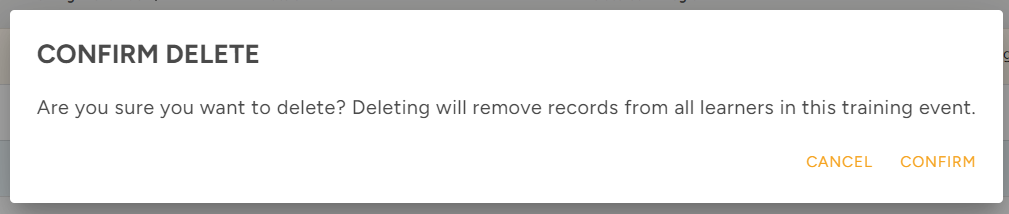
To delete a Training Event, check the box(es) next to the desired Training Event(s) and click Delete; then, confirm your decision to delete. *Note: Deleting will remove records from all Learners in this Training Event.
Additional Classroom Training Events Page Functions
You can use the Search or Filter feature to locate specific Training Events. Search in the field or use the filters to narrow down results.
You can also filter the table to view training events with a specific Event Status.
Export List will download a file (Excel or PDF) to your device with the displayed information in the table. Check the box next to specific Training Event(s) to export the information for just those selected events.
OR
Click Selected Columns at the top right of the table to add additional columns of relevant data.
Comments
0 comments
Article is closed for comments.